
System Options - Leave Type
This area specifies how the leave items will appear in Employee Self-Service Kiosk.
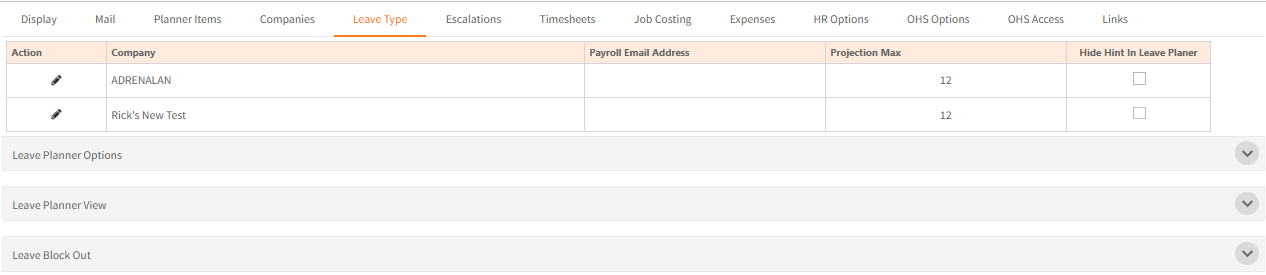
Initially this displays the company names available to the system, the contact email address for the payroll department for each company (if email to Payroll is selected).
How many months in advance leave can be projected, and whether or not the hint for the leave request should be displayed in the Leave Planner.
When you rest your cursor on an event in the leave planner, the hint will show what type of leave it is, such as Public Holiday or Approved Annual Leave.
To check or amend settings for a company, click the edit icon  in the Action column.
This will expand the screen by displaying edit options for the company, and additional sections.
Company
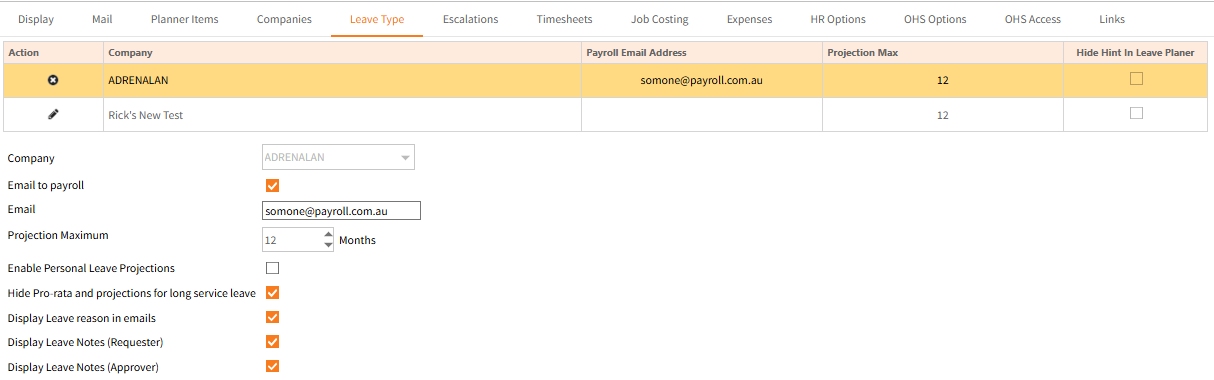
| Field | Explanation |
| Email to Payroll | Check this box to copy this address on approved leave request emails. |
| Enter the payroll email address if Email to Payroll is selected. | |
| Projection Maximum |
In Leave Details > Leave Balances, employees can project their leave balance to a point in the future - e.g. 'how much leave will I have in 7 months time'. This option changes how far forward employees are able to project their balance. Note that this is applied from the date you specify the change is provided. |
| Enable Personal Leave Projections | Checking this box switches projections on for Personal Leave. |
| Hide Pro-rata and projections for long service leave | Checking this box switches projections off for Long Service Leave and hides the pro-rata balance. The entitled leave balance will still display. |
| Display Leave reason in emails | Checking this box includes the leave reason in leave request emails. |
| Display Leave Notes (Requester) | Checking this box includes the Notes (Requester) field entry in leave request emails. |
| Display Leave Notes (Approver) | Checking this box includes the Notes (Approver) field entry in leave request emails. |
Leave Type
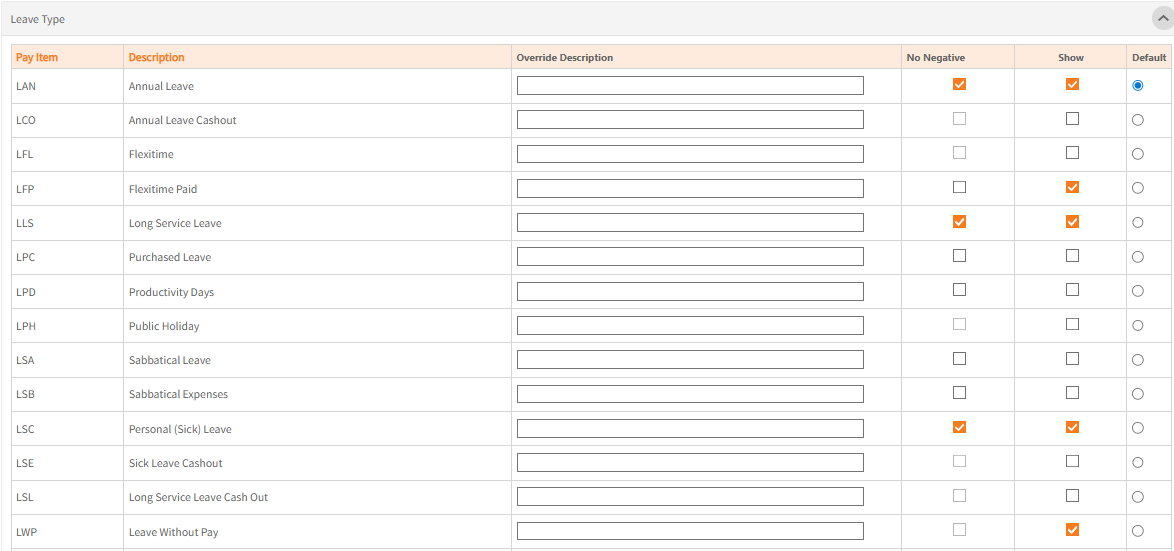
Select the types to be selectable in leave requests with the Show checkbox.
One leave pay item may be assigned as the default leave type to display on leave requests, in the example above it is LAN - Annual Leave.
Override Description may be provided to display on the leave request instead of the Description.
For example instead of displaying Flexitime an organisation may refer to it as Flexible Hours, or employees may know it as Time in lieu.
No Negative invokes a calculation that attempts to stop a user from overdrawing leave.
It factors in the current balance, the projection for leave that should accrue (if not turned off) to the leave request’s end date and approved leave before and after that date not yet paid.
It cannot cater for all situations, particularly if leave requests are left as submitted or if an employee doesn’t work normal hours over the projection period.
Leave Reason
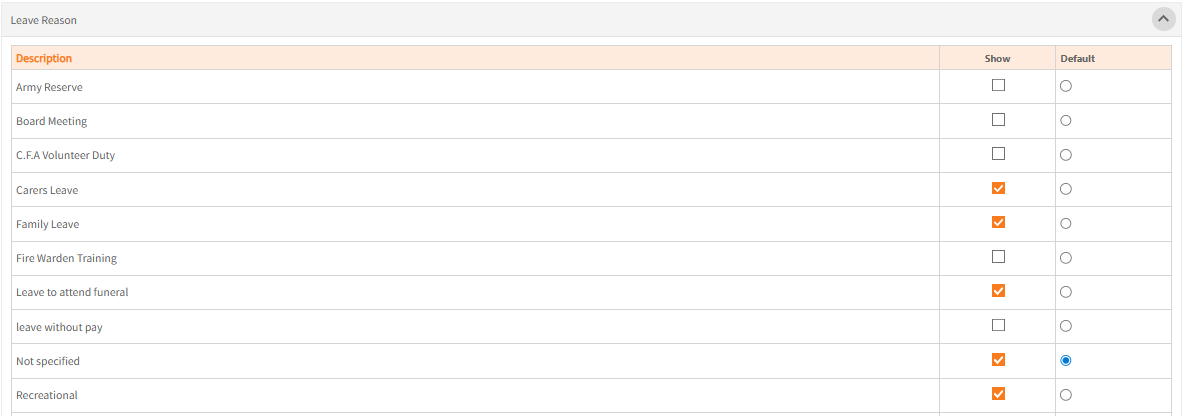
Select the leave reasons setup in Ready Pay to be selectable in Employee Self-Service Kiosk leave requests with the Show checkbox.
One leave reason may be assigned as the default reason to display on leave requests, in the example above it is Not Specified.
Leave Requests
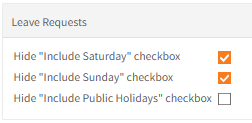
Leave requests default to only calculate hours Mon-Fri for non-public holidays, unless employees are set up with work patterns.
Weekends and public holidays may optionally be ticked to be included in leave requests.
If these days are never worked by your employees and won’t be taken, you may to stop those options from being displayed on a leave request.
Check the relevant boxes to hide the Include Saturday, Sunday or Public Holidays checkboxes on leave requests.
Do not select them to be hidden if employees may work on those days.
Once all changes have been made, click Update to save.
The pages below contain settings for all companies.
Leave Planner Options
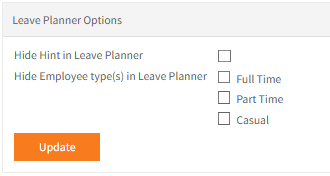
Check the appropriate boxes to hide the hint or certain employment statuses from the Leave Planner.
Leave Planner View
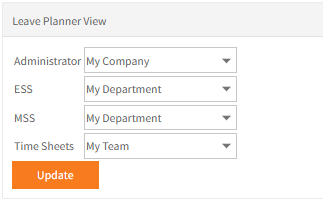
This view shows you the User Groups you have created .
Within each Employee Self-Service Kiosk User Group select from the My Team, My Company, My Cost Centre, My Department
Leave Block Out

Leave Block Out allows you to block out periods where leave may not be requested.
Select the Company, limit to specific Departments and/or Employment Conditions if required.
Specify the date range that leave may not be requested.
Once all changes have been made, click Update to save.
Return to Admin Menu